How to Choose an SSD?
The first thing to think about when selecting a computer is how you want to utilize it. Office work can be done with a simple device, but professional or gaming responsibilities call for something larger and more powerful. SSDs are subject to the same regulation. The performance and intended purpose of these drives vary, which has a substantial impact on the behavior of the entire system. One of the most crucial choices when purchasing or updating a PC or console is selecting the appropriate SSD.
You will discover the definition and operation of an SSD in this guide. Depending on your particular requirements, we'll help you select the ideal drive for your laptop, gaming setup, or workstation by outlining the distinctions between SATA III and PCIe NVMe SSDs.
You will learn what an SSD is and how it works in this guide. You can choose the best drive for your laptop, game setup, or workstation based on your needs. We'll talk about the differences between SATA III and PCIe NVMe SSDs.
What is an SSD?
A Solid State Drive, or SSD, is a new type of storage device that uses NAND flash memory. It's found in laptops, desktops, and game systems. SSDs (solid-state drives) don't have any moving parts like HDDs do. This makes them more resistant to shocks and quieter when they're working. There are memory cells that store data and a controller that controls how the data is accessed and sent. This structure makes the drive work much faster than regular HDDs and uses less power, which is very helpful for laptops.
How Does an SSD Work?
Each SSD has NAND flash memory, a controller, a communication interface, and, based on the setup, a DRAM buffer and pSLC cache as well.
The controller makes sure that the memory cells wear out evenly, which supports durability and consistent performance. The buffer stores information about where data is stored, which speeds up read and write processes. It holds big files for a short time before writing them to flash cells. How the drive links to the motherboard and how fast it can go are both controlled by the communication interface. Read and write speeds of up to 15,000 MB/s are possible with PCIe NVMe, while SATA III supports up to 550 MB/s. This is very important for working with large video files, games, or graphic design projects.
What are the pros of SSDs and how do they differ from HDDs?
SSDs are very different from HDDs in several important ways: they don't have any moving parts, are much faster, use much less power, and don't make any noise when they're working. They can also handle a lot of shock. HDDs, on the other hand, can be broken by vibration or impact. Additionally, SSDs make system and app launches faster.
Even tho SSDs cost more per gigabyte than HDDs, they are a good long-term investment because they work well and can hold more data.
In real-life tests, SSDs can start up operating systems in seconds, while HDDs can take more than a minute. HDDs are still used for backup and archiving because they are cheap per GB. They are often used as part of mixed setups that mix SSDs and HDDs.
Which SSD Should You Get for Your PC or Console?
Important Points
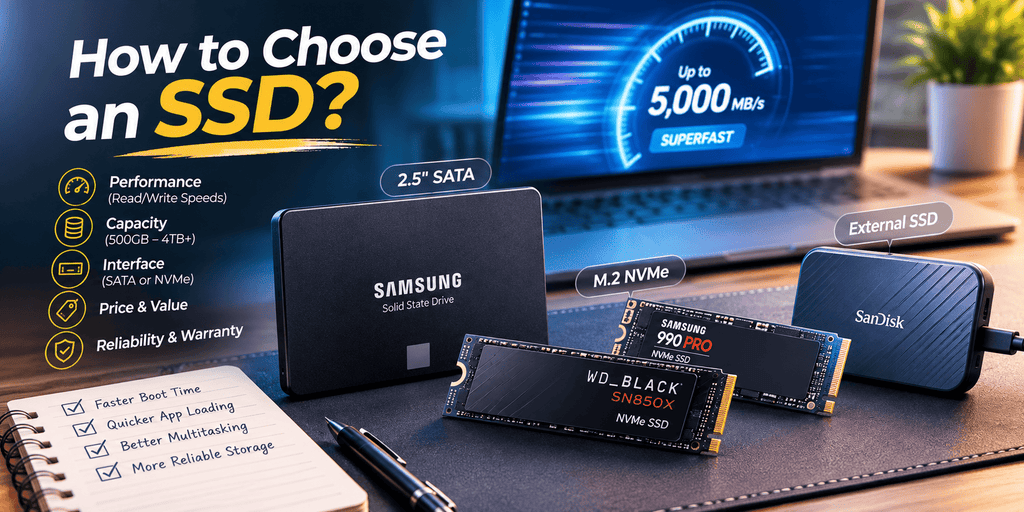
Read and Write Speeds: NVMe PCIe drives can go up to 15,000 MB/s, while SATA III SSDs can go up to 550 MB/s. When read speeds are faster, apps and systems start up faster. When you write faster, it takes less time to copy and save files.
No. of Bytes: TBW Written tells you how much data can be written to the SSD over its lifetime. This is very important for people who work with big files or a lot of work. A higher TBW means that the drive will last longer.
NAND Type—The speed and durability of NAND flash memory depend on the type:
SLC has the longest life (rare today).
MLC and TLC: a good level of efficiency and cost
QLC: most capacity, less stamina
Interface: This affects how well it works with motherboards and how fast it can go. For the best speed, PCIe NVMe is suggested. SATA III, on the other hand, works with older laptops and desktops. People who use consoles or portable PCs should pay extra attention to this.
Why SSD Write Speed Is Important
Write speed tells you how fast the drive can save new or changed files. With faster speeds, you can quickly send videos, install games, or save graphic design projects.
Drives that use PCIe 3.0 can go up to 3,000 MB/s, drives that use PCIe 5.0 can go up to 15,000 MB/s. The type of NAND and the size of the buffer affect this measure. Even in QLC drives, speeds can slow down if the cache gets full. That's why you should look at both description sheets and benchmarks from real life.
Different kinds of NAND flash memory
Which kind of NAND do you need? It depends on how much you write and how busy you are. Here is a list of the different types of SSD NAND and what they can do:
Triple-Level Cell (TLC) is what most modern SSDs for laptops and games use. NVMe drives can go over 3,500 MB/s and store three bits per cell. It has good speed and endurance.
QLC (Quad-Level Cell): It has the most space because each cell can store 4 bits. Once the pSLC cache is full, QLC SSDs usually have speeds between 100 and 500 MB/s and offer good performance and durability at a good price.
SSD types and connections: PCIe NVMe, M.2 SATA, and SATA III
This part talks about the main SSD formats and interfaces and how to choose the right one for your device and needs.
The SATA III SSD
There are many laptops and PCs that can use this classic 2.5-inch form factor. It's cheap and easy to put. With top speeds of about 550 MB/s, it's fast enough for most home and office tasks.
The M.2 SATA SSD
This is a small SATA SSD that can be attached directly to the motherboard using the M.2 2280 format. It has the same performance as 2.5′′ SATA drives, but it can be installed without cables and has better airflow. Still limited by the speed of SATA.
SSD M.2 PCIe NVMe
These drives perform at the very best level. With read/write speeds of over 3,500 MB/s (PCIe 3.0) and up to 15,000 MB/s with PCIe 4.0 and 5.0, they use the NVMe protocol over PCIe. When it comes to SSDs, PCIe 4.0 SSDs can work in PCIe 3.0 slots, but they will run slower.
NVMe drives are great for demanding tasks like gaming, making content, and doing several things at once. The downsides are that it costs more and might need active cooling, especially in closed systems or laptops.
SSD TBW: How to Understand Endurance
Total Bytes Written (TBW) shows how much data can be saved on an SSD over time. Consumer SSDs range from about 150 TBW for 250 GB models to 600+ TBW for 1 TB, and over 1,200 TBW for high-end PCIe NVMe models. Higher TBW means longer-lasting drives.
SSD Types by Use Case
In this section, we explore which SSDs are best suited for gaming, desktop PCs, backups, and professional workloads. Different scenarios require different attributes: gaming SSDs need fast read speeds, desktops prioritize capacity and reliability, backups benefit from durable writes, and multitasking workflows require high TBW and strong endurance.
SSD for Laptops
First, check your device’s supported format (usually M.2 2280 or 2.5-inch SATA). Interface type also matters. Older laptops may use M.2 SATA, while newer models support PCIe NVMe. Devices like MS Surface require FF2230 SSDs. Laptop SSDs should also offer high endurance (TBW) and shock resistance.